

Reducing Website Image File Sizes: Should Photos Use WebP and Transparent Images Use Only PNG?
This post contains Coupang Partners affiliate links. We may earn a commission from qualifying purchases.
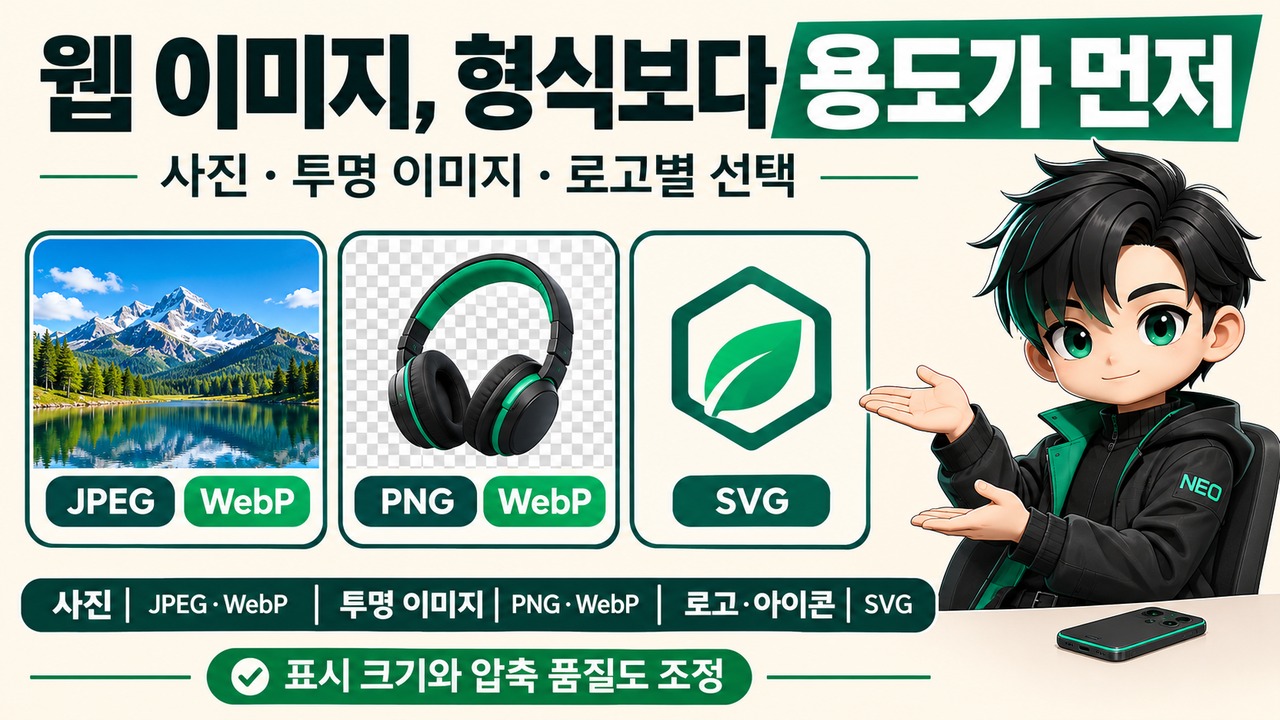
To reduce website image file sizes, consider JPEG or lossy WebP for photos, and PNG or transparency-supporting WebP for images with transparent backgrounds. SVG may be more suitable for images where crisp shapes matter, such as logos and icons. Along with the image format, adjust the display size and compression quality to reduce unnecessary file size.
It is not efficient to convert every image to JPEG or save every file as PNG. The right choice depends on whether the image is a photo, a screenshot containing text, or an image that needs a transparent background.
Why the Choice Among JPEG, PNG, and WebP Depends on the Image Type
The main differences among the three formats are their compression methods and whether they support transparency.
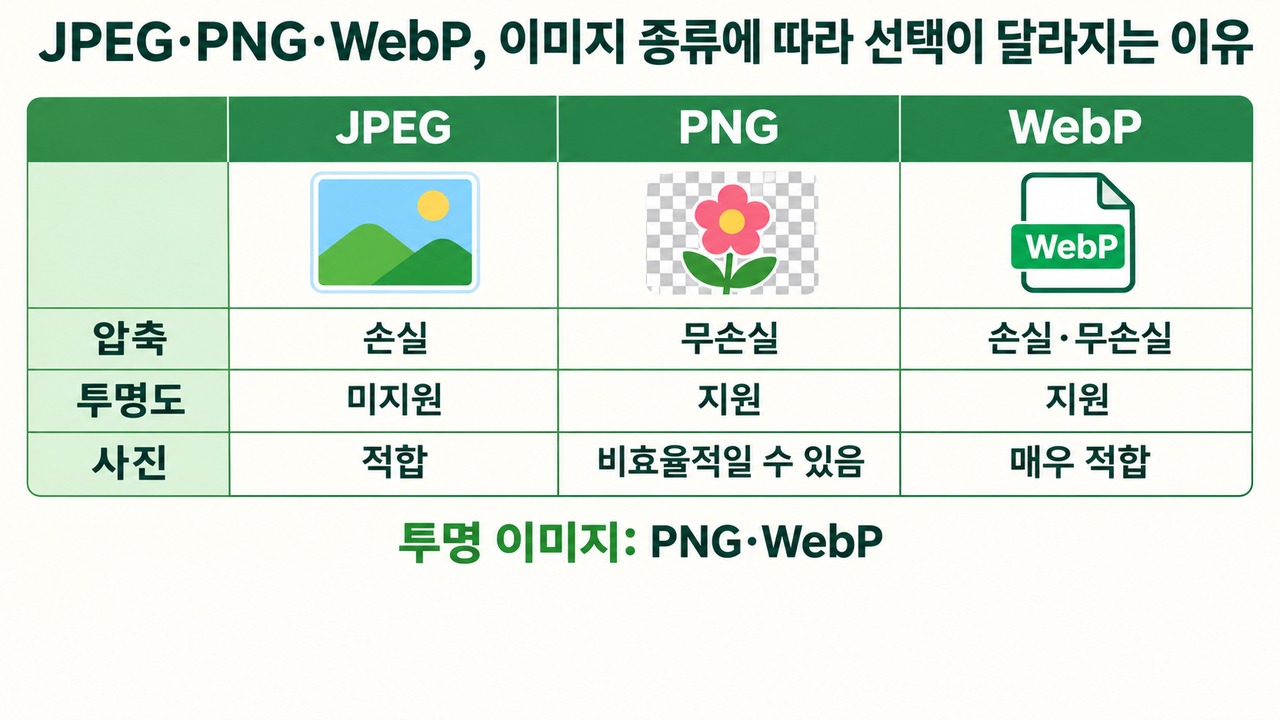
JPEG is suitable for saving photos as small files, but it does not support transparent backgrounds. PNG supports lossless compression, which preserves the original details, as well as transparency. WebP supports both lossy and lossless compression and can also handle transparency, giving it a broad range of uses on websites.
| Category | JPEG | PNG | WebP |
|---|---|---|---|
| Compression method | Lossy | Lossless | Lossy and lossless |
| Transparent background | Not supported | Supported | Supported |
| Photos | Suitable | Possible, but may be inefficient | Highly suitable |
| Logos and icons | Not recommended | Suitable | Suitable |
| Text and screenshots | Not recommended | Suitable | Lossless recommended |
| Website use | Photos | Transparent images and screenshots | Photos and transparent images |
The key point is that WebP is not simply a format that combines every feature of JPEG and PNG. WebP’s image quality and file size also vary depending on its compression settings.
Is WebP better than JPEG for photos?
For typical landscape, portrait, and product photos, it is a good idea to compare lossy WebP first.
JPEG is also suitable for photo compression, but WebP can reduce file size more while maintaining similar visual quality.
MDN, Mozilla’s developer documentation, explains in its image format guide that lossy WebP is on average 25~35% smaller than JPEG at similar visual quality, and lossless WebP is on average 26% smaller than PNG for the same image.
These figures are average comparison results presented in the documentation, not savings rates that will be achieved equally for every image.
So when converting a photo, it is a good idea to check the following:
Are the person’s skin and hair free from smearing?
Do the colors in the sky or background look natural?
Are small text and product outlines preserved?
Has the file size actually decreased?
Start with lossy WebP for photos, then compare it with JPEG if you are not satisfied with the image quality.
Can you use WebP instead of PNG for images with transparent backgrounds?
Yes. WebP supports an alpha channel, which represents transparency.
For example, product cutouts with transparent backgrounds, characters, decorative graphics, and logo files can be saved as WebP as well as PNG.
However, not all transparent images should be compressed in the same way.
Product cutout photos: Compare transparent WebP with PNG.
Simple logos: Consider SVG first. If you need a raster image, use PNG or WebP.
Small icons: SVG is suitable. If SVG is not practical, consider transparent WebP.
Images containing text: Prioritize lossless compression that preserves sharp edges.
JPEG does not support transparent backgrounds, so converting a transparent image to JPEG will not preserve its transparent areas.
What to check before focusing on file format when reducing image size
Image file size is not determined by format alone. The image’s pixel dimensions and compression level also matter.
Google’s image optimization guide on web.dev describes reducing image dimensions and adjusting compression settings together as ways to reduce image size.
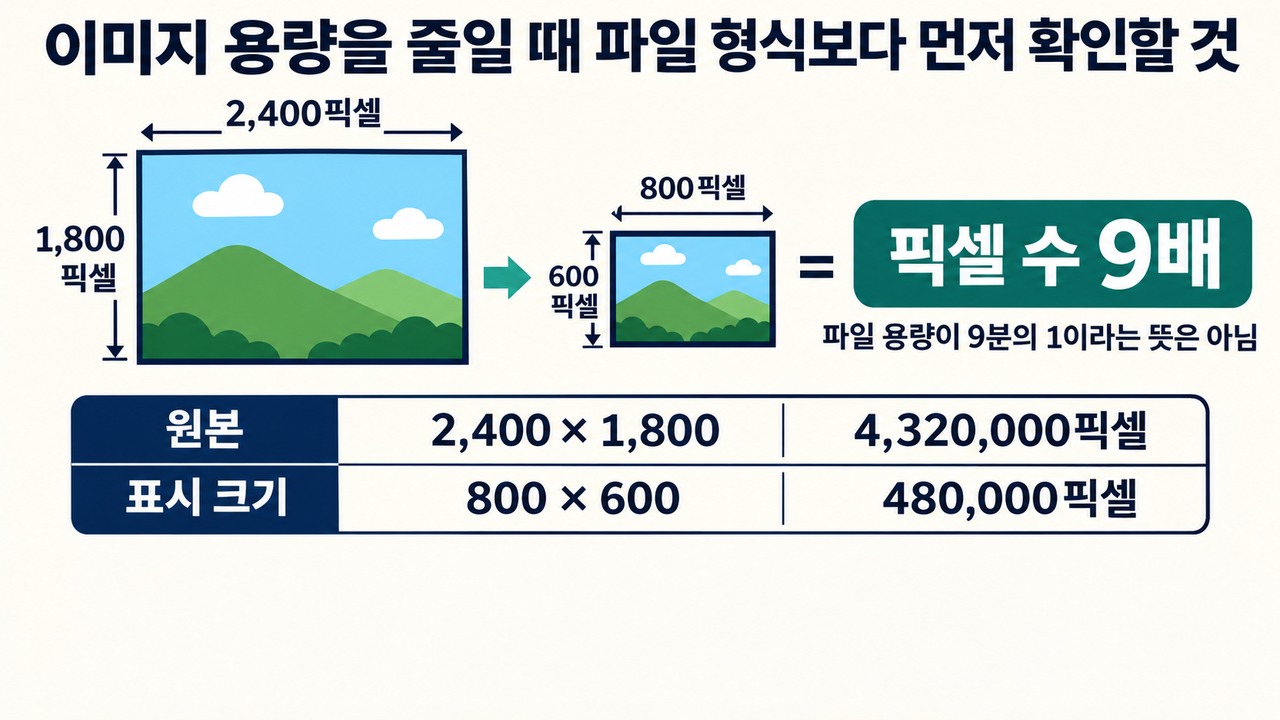
For example, suppose a photo is displayed on a website at 800 pixels wide and 600 pixels tall.
If the original file is 2400×1800 pixels, it is much larger than the actual display area requires.
Author’s calculation · Comparing image pixel counts
| Category | Width × height | Total pixels |
|---|---|---|
| Original | 2,400 × 1,800 | 4,320,000 |
| Display size | 800 × 600 | 480,000 |
The original has 9 times as many pixels as the display size.
The calculation is as follows.
Original: 2,400 × 1,800 = 4,320,000 pixels
Display size: 800 × 600 = 480,000 pixels
Pixel count ratio: 4,320,000 ÷ 480,000 = 9 times
This calculation compares the number of pixels in the images; it does not mean that the actual file size will be reduced to exactly 1/9.
The actual file size varies depending on the compression algorithm, color information, and image content.
Also, high-resolution screens may require more pixels, so consider the display sizes on mobile and desktop instead of automatically resizing images to 800×600.
You do not have to serve the same original image to mobile and desktop
Responsive image techniques let you serve files at different resolutions depending on screen size.
Google’s web.dev explains that serving a desktop-sized image to mobile devices can use 2~4 times more data than necessary.
HTML’s srcset and sizes attributes can be used for this.
srcset: Specifies multiple sizes of the same image.
sizes: Indicates the expected width the image will occupy on screen.
src: The default image URL to use in environments that do not support these attributes.
For example, you can configure a product page to show a large image on desktop and a smaller one on mobile.
Simply compressing an image and delivering one sized for what users actually need are two different optimization tasks.
Which Formats Work Best for Photos, Logos, and Screenshots?
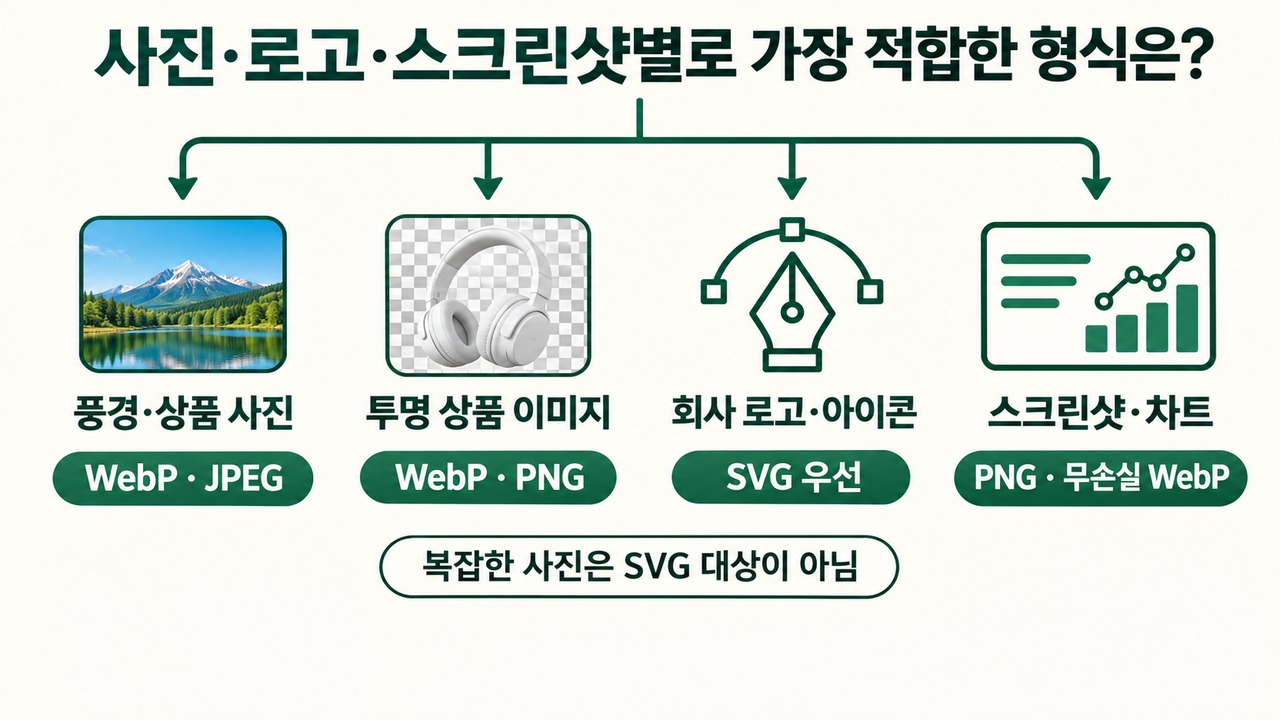
Here are some selection guidelines by image type.
| Image type | Formats to consider first | Why |
|---|---|---|
| Travel and landscape photos | WebP · JPEG | Suitable for photo compression |
| Product photos | WebP · JPEG | Compare file size and image quality |
| Product images with transparency | WebP · PNG | Preserve transparency |
| Company logos | SVG · PNG | Preserve outlines and sharpness |
| Website icons | SVG · WebP | Resize while maintaining sharpness |
| Screenshots | PNG · lossless WebP | Preserve text and lines |
| Charts and diagrams | SVG · PNG | Preserve detailed elements |
One more distinction is important here.
SVG is not a format for compressing photos; it is a vector format that represents images using lines, shapes, paths, and other elements.
That makes SVG useful for graphics such as company logos and simple icons that need to stay sharp when enlarged.
By contrast, converting complex landscape or portrait photos to SVG is not a typical image optimization method.
Steps to Reduce Image Sizes on an Actual Website
You can optimize images in the following order.
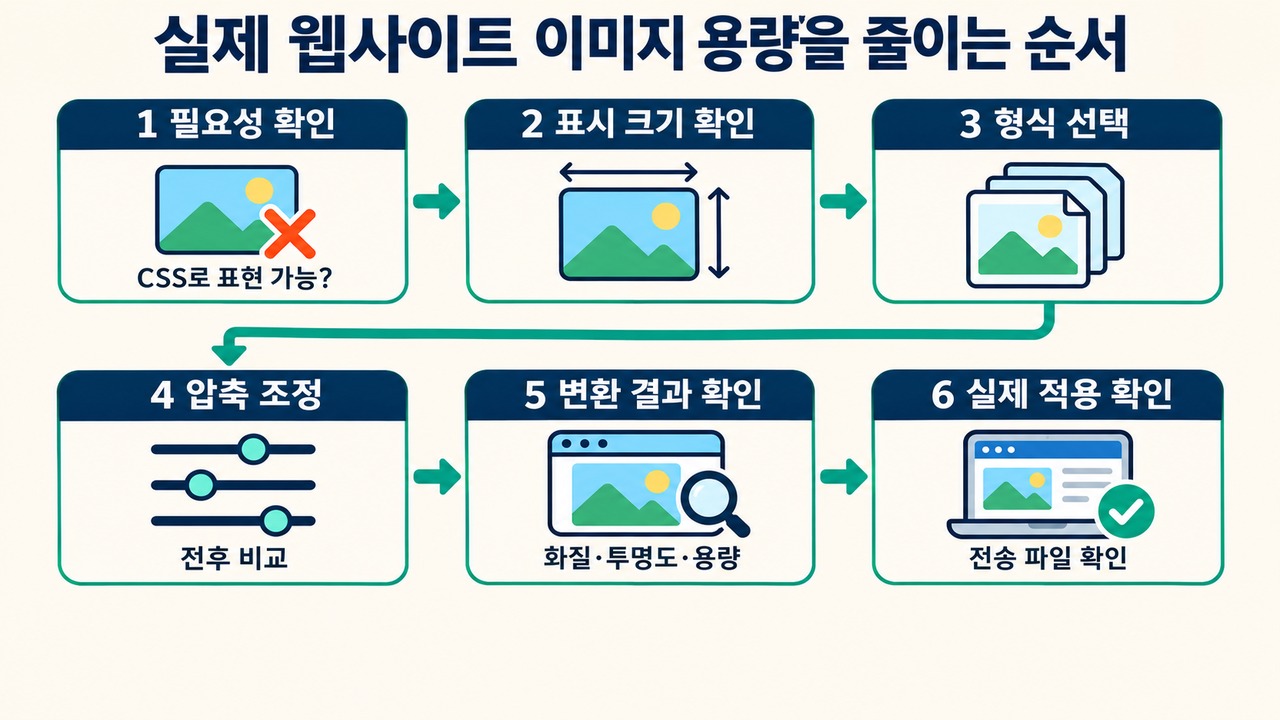
1 stage. Check whether the image is actually needed.
Simple background colors, shadows, and decorative effects can be created with CSS. If you can remove the image file itself, you can also reduce the data users need to download.
2 stage. Check the image's actual display size.
Check the width and height at which the image appears on the webpage, and resize any unnecessarily large originals.
3 stage. Choose a format that suits the image.
Photos: JPEG or lossy WebP
Transparent graphics: PNG or transparent WebP
Screenshots where text and lines matter: PNG or lossless WebP
Logos and simple icons: SVG
4 stage. Adjust the compression level.
With JPEG and lossy WebP, increasing compression can reduce file size but may also lower image quality.
So instead of applying one fixed quality setting to every image, compare the results before and after compression.
Google web.dev also explains that quality-setting numbers for different image formats cannot be compared directly, and that the right compression level should be checked for each image.
5 stage. Inspect the converted result yourself.
Check the following:
Did the file size actually decrease?
Was the background transparency preserved?
Are the text and outlines still crisp?
Are there any major color shifts?
Is the required resolution available on mobile?
6 stage. Check how the images are actually being served on the website.
Converting a file does not mean optimization is complete.
Check which image files are actually sent on the webpage and whether any unnecessarily large images remain.
Converted to WebP, but Is the Website Still Slow?
Changing the image format alone will not solve every loading problem.
Check these items as well:
The image's actual pixel dimensions
Whether separate images are provided for mobile
The number of images used on the page
Loading priority for the main image at the top of the page
Whether images farther down the page are lazy-loaded
Unnecessary metadata embedded in image files
Whether space has been reserved for the image in advance
In particular, the main image displayed prominently at the top of the page should not automatically be set to load late.
Conversely, there is no need to load every image farther down the page as soon as the page starts loading.
Also, specifying an image's width and height or reserving the appropriate aspect ratio can help reduce sudden shifts in nearby content while the image loads.
Google Search Central's image guidelines also recommend considering standard HTML image elements, responsive images, appropriate image sizes, and descriptive information to support image discovery in search and provide a good user experience.
Common Mistakes When Reducing Image File Sizes
Is it always better to convert PNG to WebP?
Not always. The edges of screenshots with lots of text or detailed graphics can become blurry during lossy compression. Compare lossless WebP with PNG.
Is it best to lower JPEG quality as much as possible?
The file may become smaller, but details in the photo can be lost. Check the visual quality before and after compression.
Do transparent images always have to be PNG?
No. WebP also supports transparency. However, check the software and website environment where the image will be used.
Does reducing image dimensions always lower image quality?
Resizing the original to match its display size can reduce unnecessary pixel data. However, removing pixels needed for high-resolution screens can reduce sharpness.
Will converting to WebP make a page rank higher in Google Search?
Website Image Optimization: What Should You Choose?
The simplest way to choose is to consider the image's purpose.
For photos, compare lossy WebP first and use JPEG as an alternative.
For photos with transparent backgrounds, compare transparent WebP with PNG.
For screenshots that need crisp text, use PNG or lossless WebP.
Consider SVG first for logos and icons.
Check the actual display size of each image and, where needed, serve it as a responsive image.
The key to image optimization is not to make every file use the same format.
The most practical approach is to choose a format suited to each image's purpose, provide only the pixels needed, and maintain image quality that looks clear to the eye.
This post contains Coupang Partners affiliate links. We may earn a commission from qualifying purchases.