

Why You Can’t Search for Text in a Scanned PDF, How to Check Whether OCR Was Applied, and How to Make It Searchable
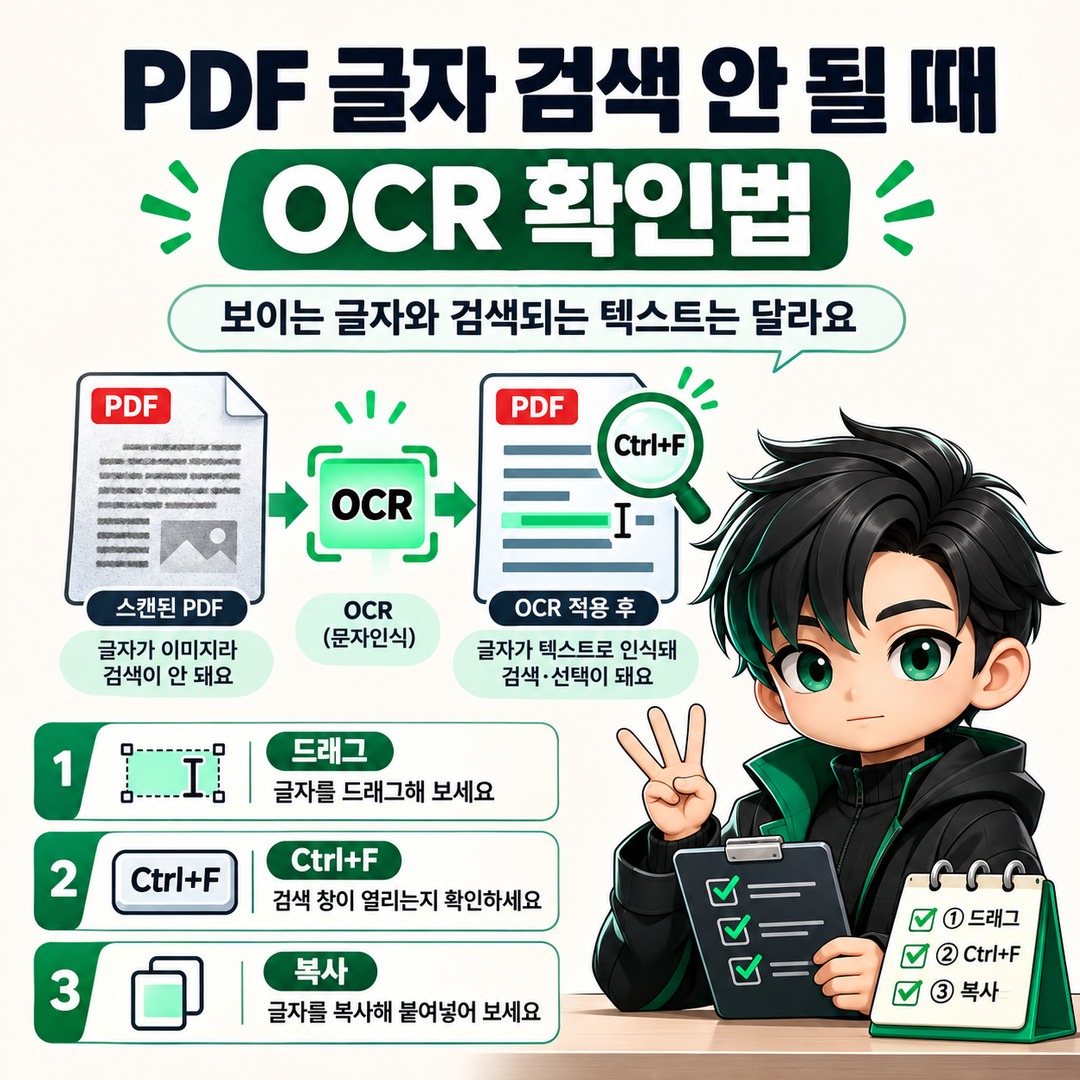
If you can clearly see text on a PDF page but can’t find it with Ctrl+F, the document may be saved as images only. A PDF scanned from a paper document may contain only image data showing the shapes of letters; in that case, OCR (optical character recognition) must be applied to make the text searchable and copyable. However, OCR may not have been applied to some pages, or the text may have been recognized incorrectly, so it’s best to check the text layer first.
Why can’t I search for text that I can see in a PDF?
The fact that text is visible in a PDF and the fact that a computer recognizes it as text are two different things.
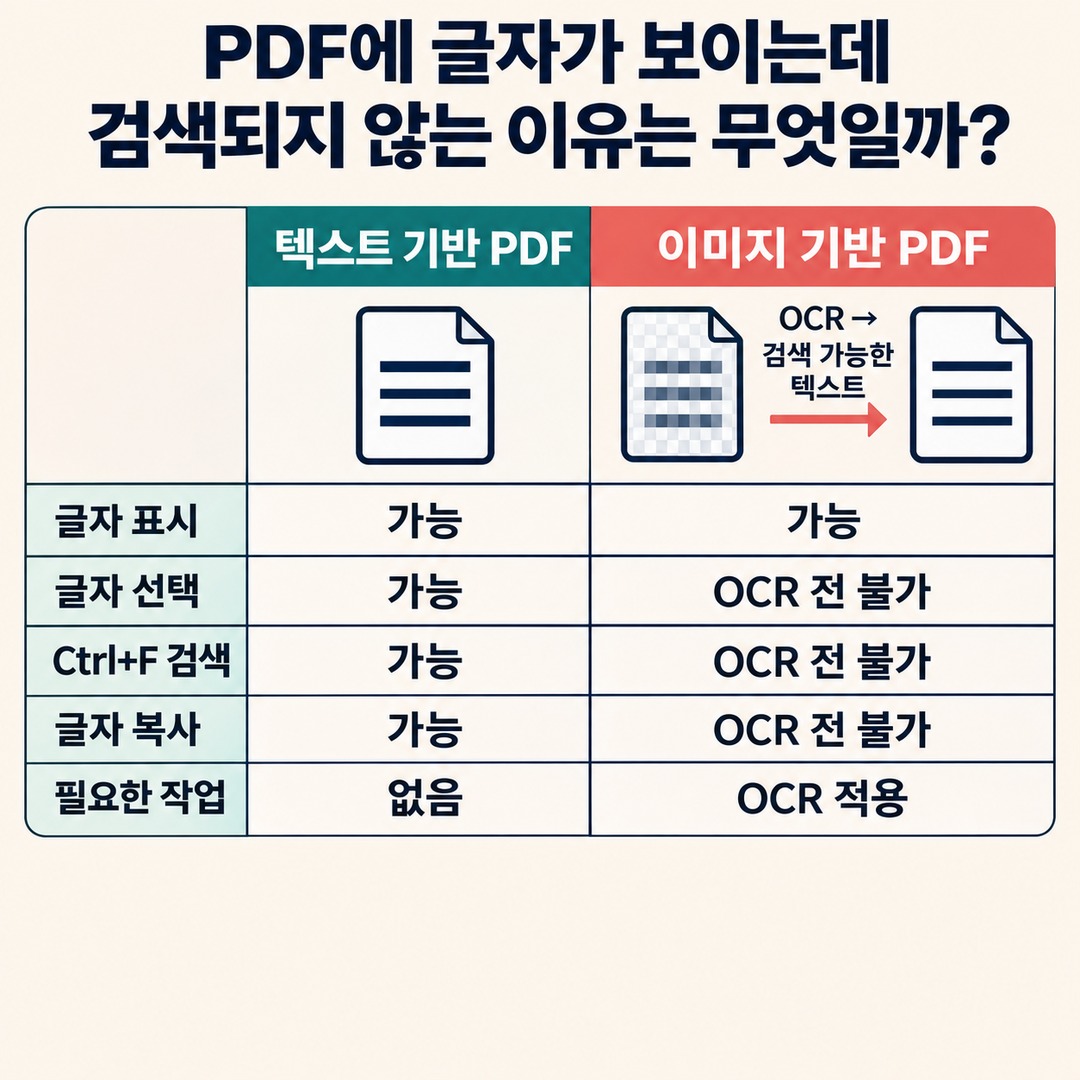
PDFs can display text in two main ways:
Text-based PDF: The text is stored as actual text data, so it can be selected, copied, and searched.
Image-based PDF: Images of paper documents or photographs are placed on the pages. The text is visible on screen, but the computer may not recognize it as text.
In its official Acrobat Help, which Adobe 2026-11-04 updated, Adobe explains that scanning a paper document to PDF may produce a file containing only image data, rather than searchable text.
Applying OCR to a document like this recognizes the characters in the images and creates a searchable text layer.
The difference between image-based and text-based PDFs
| Category | Text-based PDF | Image-based PDF |
|---|---|---|
| Text displayed | Yes | Yes |
| Text selection | Generally possible | Not possible before OCR |
| Ctrl+F search | Possible | Not possible before OCR |
| Copying text | Possible | Not possible before OCR |
| Required action | None | Apply OCR |
There’s one point to keep in mind.
So, don’t assume OCR has been applied to the entire document just because you can select text on the first page. Microsoft Learn+1
How to check whether your PDF is an image scan in 30 seconds
You can check quickly in a PDF viewer before installing a separate program.
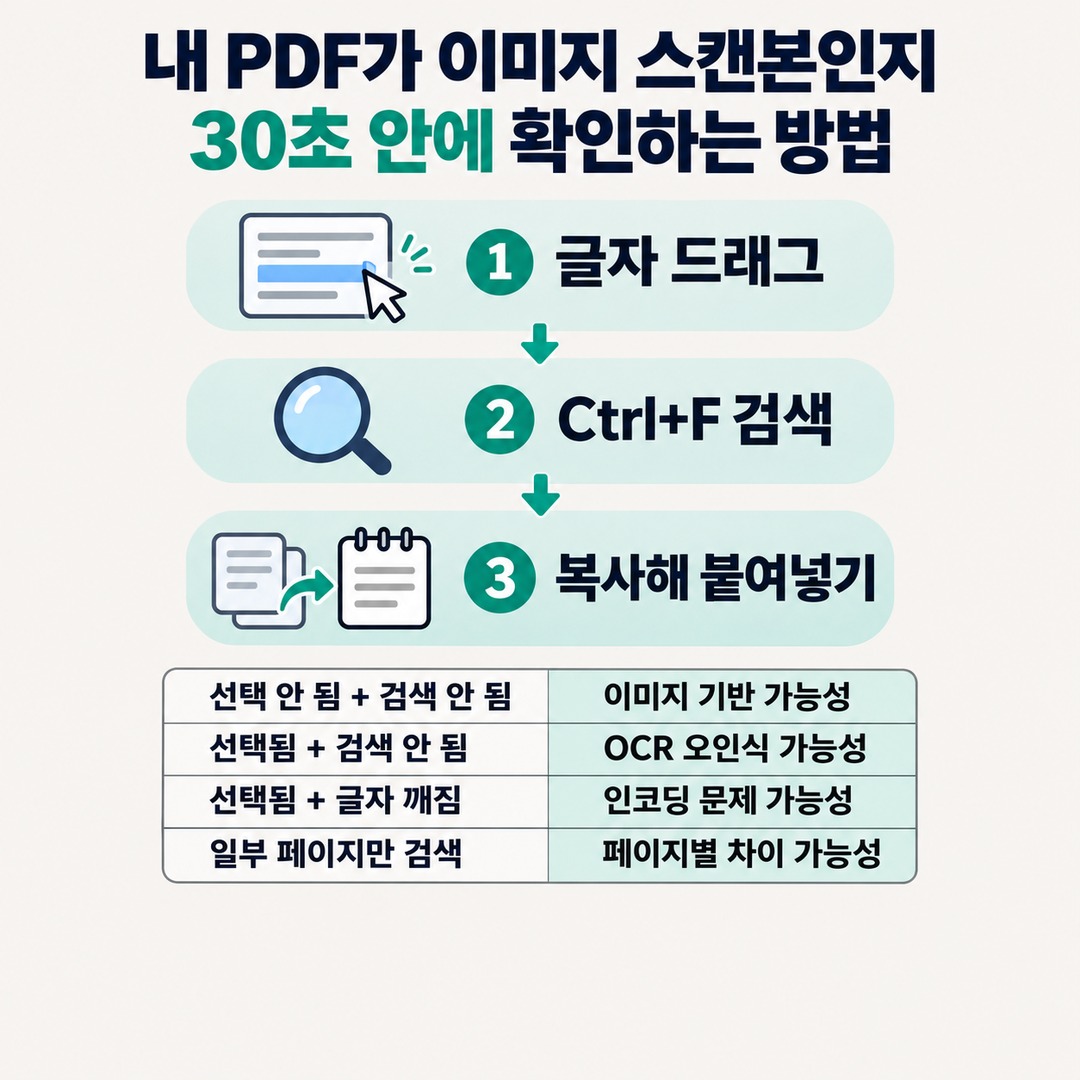
1 Step. Drag to select text
Drag the mouse across a line of text in the PDF. Check whether only part of the text is selected or whether the entire page is selected as if it were one image.
2 Step. Search with Ctrl+F
Enter a word that is actually printed in the document. Check whether it appears in the search results.
3 Step. Copy and paste into Notepad
Copy the selected sentence and paste it into Notepad. Check whether the text appears correctly.
You can interpret the results as follows:
| Result | What it may indicate |
|---|---|
| Text can’t be selected + search returns no results | The PDF may be image-based |
| Text can be selected + search returns no results | OCR misrecognition or a search-term mismatch may be the cause |
| Text can be selected + characters appear garbled | There may be a character-encoding or font-mapping issue |
| Search works on only some pages | Text layers may differ from page to page |
This is a quick diagnostic, not a definitive test of the file’s structure. Results may also vary depending on the viewer’s search function or the document’s security settings.
If a PDF is searchable on only some pages, it’s best to check the pages that aren’t searchable individually before applying OCR to the entire document again.
What does OCR do, and how does it change a PDF?
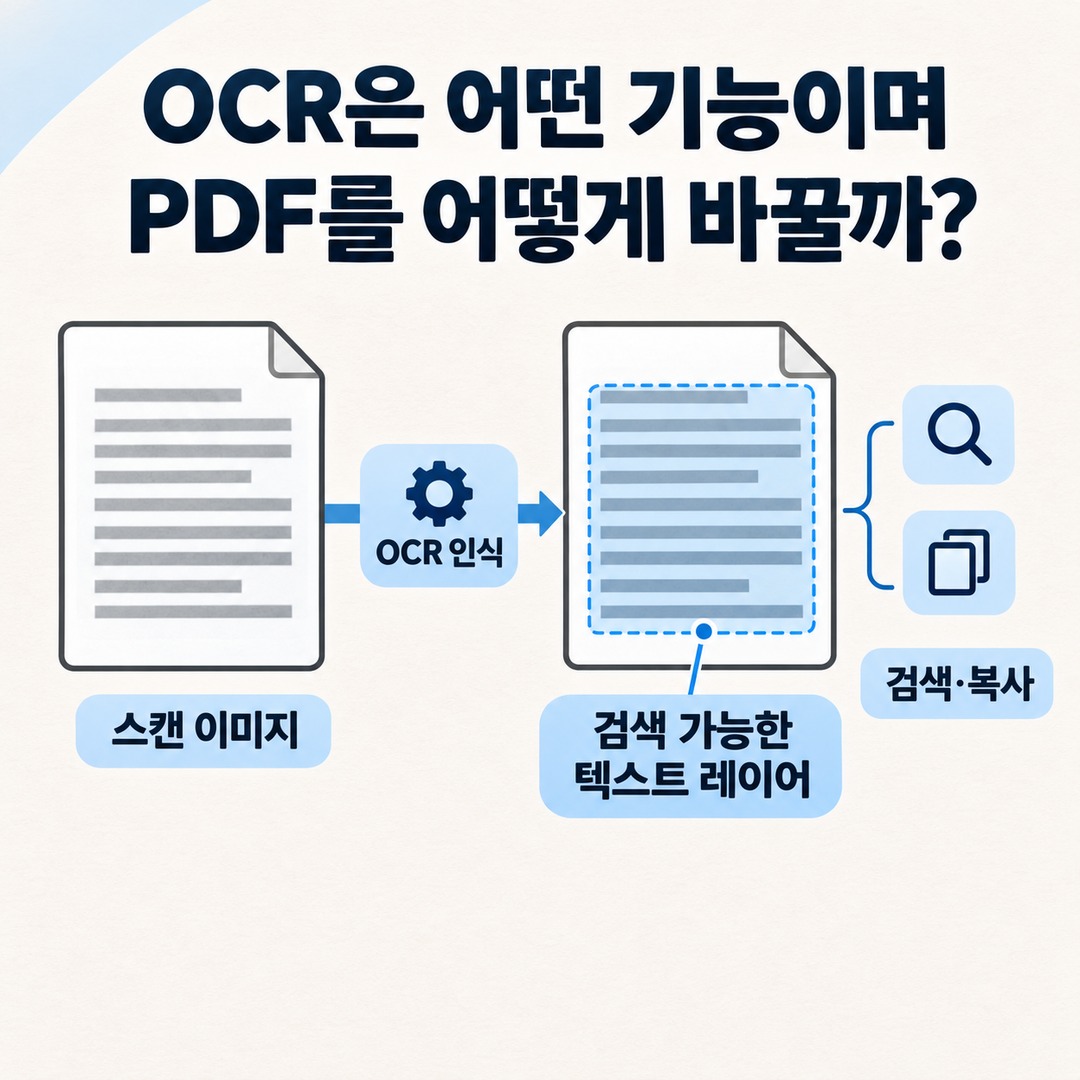
OCR stands for Optical Character Recognition. It is a technology that converts text in an image into character data that a computer can recognize.
iplocation.netApplying OCR does not necessarily replace the text in the original page image with new text.
A typical searchable PDF is created by keeping the existing page image and adding searchable text information over it.
So, when OCR is applied successfully, the document can remain almost unchanged in appearance while becoming searchable and copyable.
The official OCRmyPDF technical documentation also describes adding a searchable text layer to a scanned PDF.
How to apply OCR to a PDF in Adobe Acrobat
One way to make an existing scanned PDF searchable is to use Adobe Acrobat’s Scan & OCR feature.
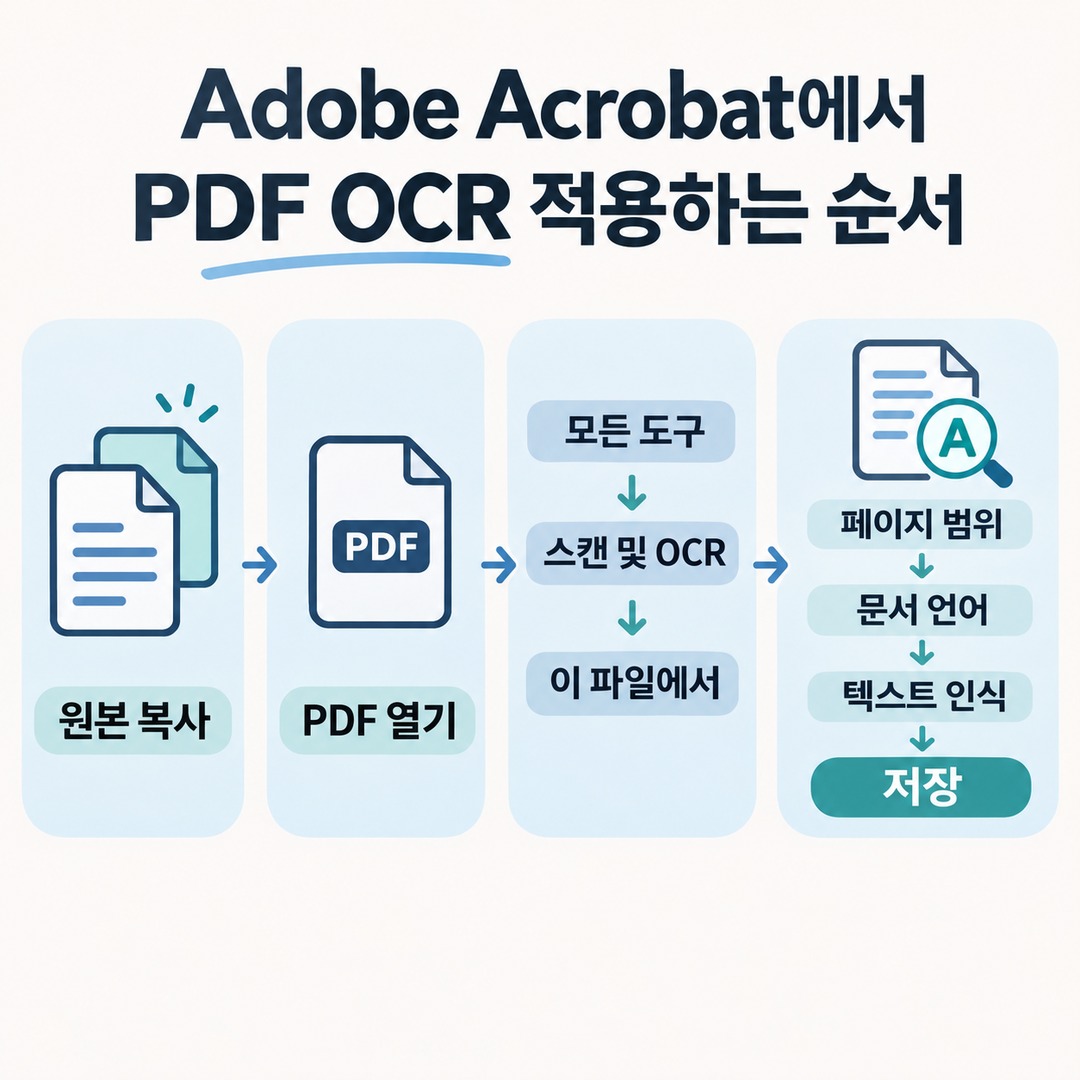
adobe.comFollow these steps:
1. Copy the original PDF to create a separate working file.
2. Open the scanned PDF in Adobe Acrobat.
3. Select All tools from the left-hand menu or the Tools menu.
4. Select Scan & OCR.
5. Select In this file.
6. Specify the page range for OCR.
7. Select the document’s actual language.
8. Run text recognition.
9. Save the PDF when processing is complete.
Adobe’s official guidance explains that specifying the page range and recognition language, then running text recognition, creates a searchable text layer. Adobe Acrobat+1
If the document is in Korean, be sure to check the OCR language setting.
If the document is not in English but recognition is set to English only, or if the language used in the document is not specified correctly, the text may not be recognized accurately.
It’s also important to keep the original file before running OCR. That way, you can still refer to the original scanned images if something goes wrong with the converted file.
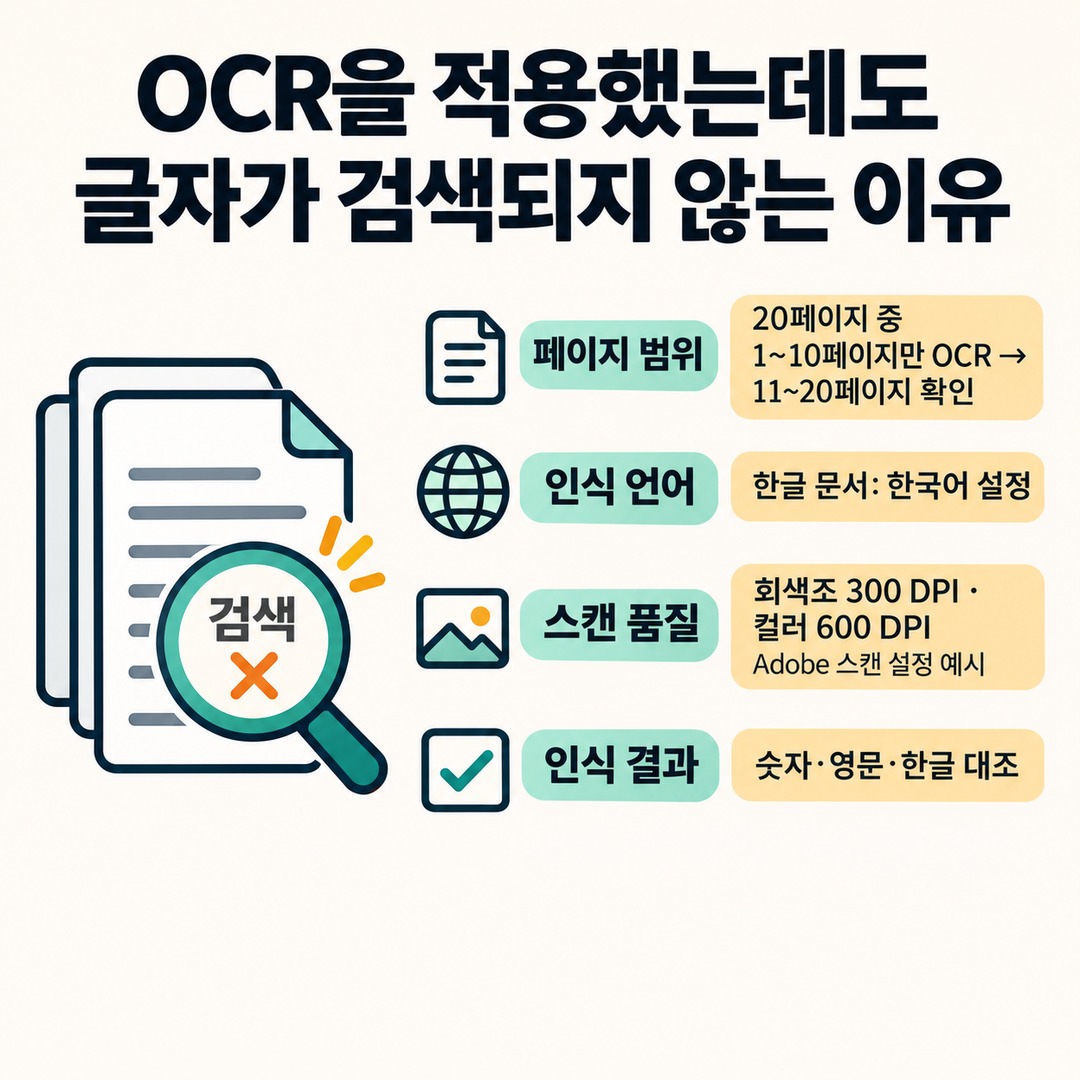
Why text may still not be searchable after applying OCR
Simply seeing that OCR has run does not guarantee that every page is searchable.
Check the following items in order.
1. Was OCR applied to the correct page range?
If you ran OCR on only some pages instead of the entire document, the remaining pages may still be images.
For example, if recognition was run on pages 1–10 of a 20-page PDF, pages 11–20 need to be checked separately.
2. Was the correct recognition language selected?
For a Korean-language document, check that Korean recognition is enabled.
For a document containing both Korean and English, check whether the OCR program supports multilingual recognition and specify the relevant languages.
3. Is the original scan quality sufficient?
Educational materials from the U.S. government’s Section508.gov describe the following issues as things to check before OCR:
Blurry scanned text
A tilted page
A document with insufficient contrast
Stains or specks in the background
Pages containing handwriting
The resource also lists Adobe’s recommended scan settings: 300 DPI for grayscale and 600 DPI for color. These are not absolute minimum requirements that apply to every document. Section508.gov+1
4. Is the recognized text in the OCR result accurate?
OCR automatically estimates what the text says, so it may recognize characters differently from the original.
You should compare the original directly, especially where numbers, English letters, and Korean characters look similar.
Here’s a hypothetical example:
If the original image says `계약금액` but OCR saves a different character instead of `계약금액`, the document may look fine on screen while that word remains unsearchable.
In that case, run OCR again or correct the recognized text.
Educational materials from the U.S. government’s Section508.gov also explain how to review OCR results and correct text that was recognized incorrectly. Section508.gov+1
Can you check OCR on a smartphone without installing a program?
One option is the Microsoft OneDrive mobile app.
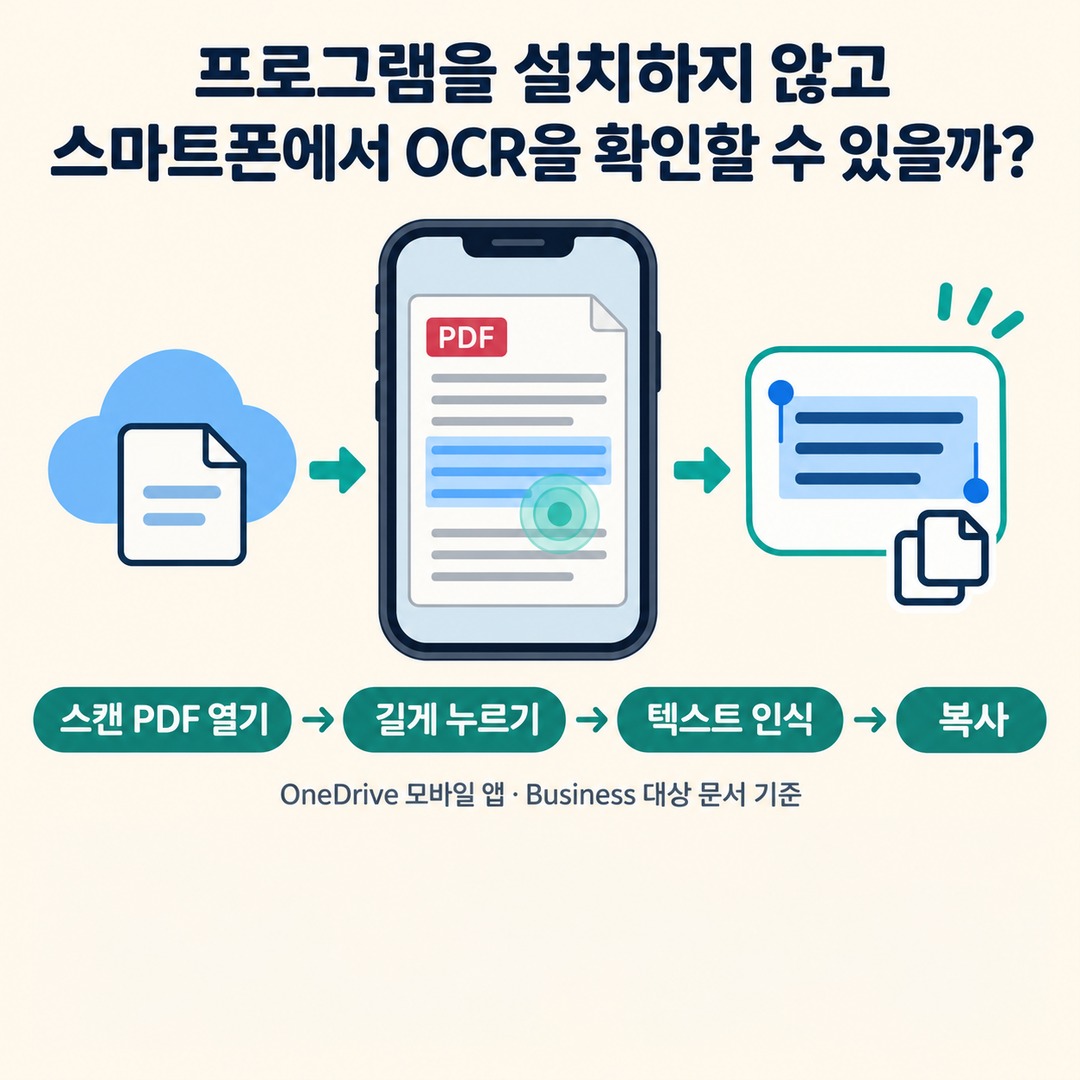
According to Microsoft’s official support documentation, the OneDrive apps for Android and iOS can open a scanned PDF and run text recognition.
support.microsoft.comHere’s how to use it:
1. Open the OneDrive app on your smartphone.
2. Open the scanned PDF.
3. Press and hold anywhere on the page.
4. Select Recognize text from the menu.
5. When recognition is complete, select and copy the text.
Microsoft says a message appears when recognition is complete, indicating that you can select the text.
However, this feature is available in the mobile app, and Microsoft’s documentation identifies OneDrive for Business as the product it covers. Check in the app to see whether it’s available with a personal account or your version of the app. Microsoft Support+1
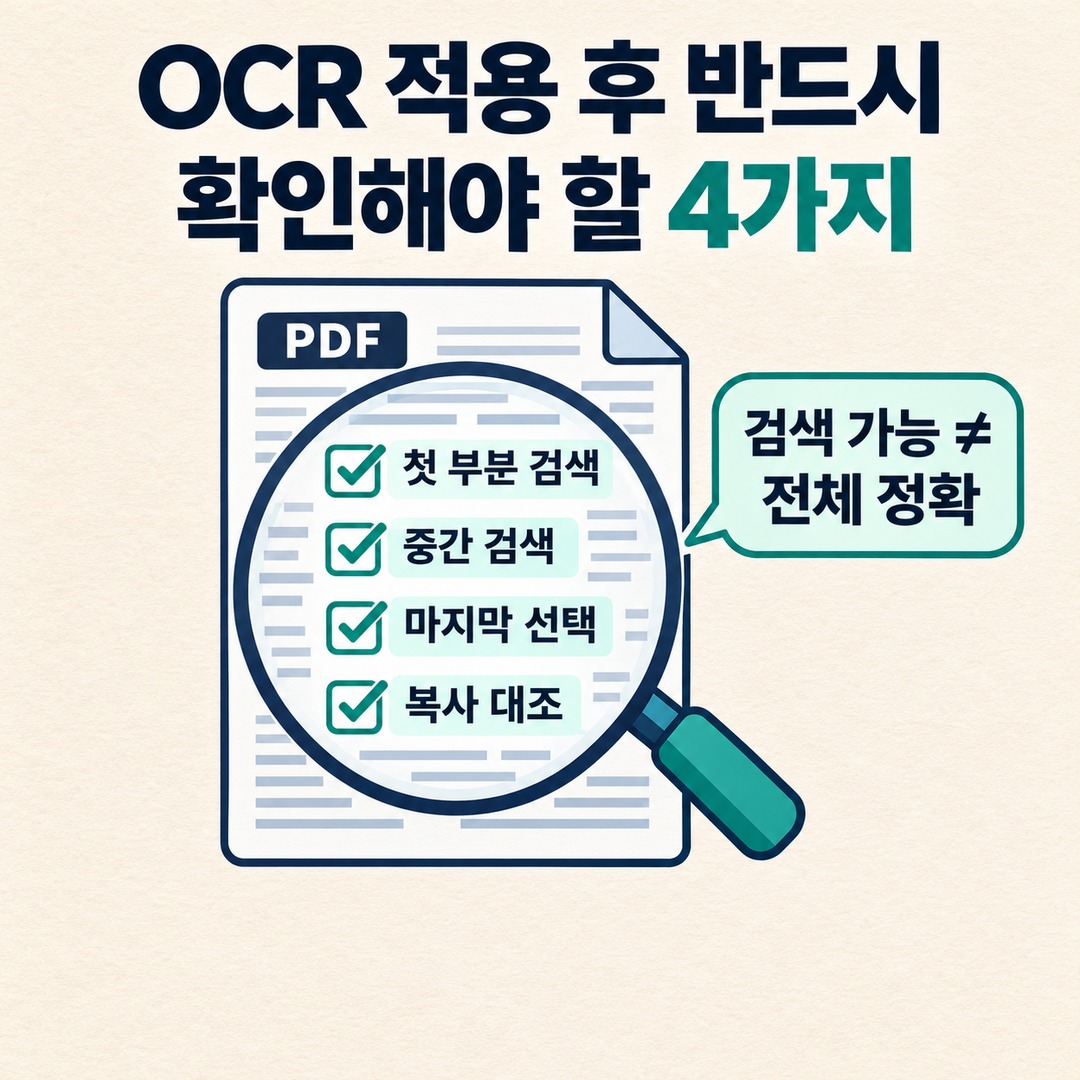
4 things to check after applying OCR
When OCR is finished, don’t stop at saving the file; verify that searches actually return results.
Can you search for a word near the beginning of the document?
Can you search for a sentence on a middle page?
Can you select text on the last page?
Does the copied text match the original?
It’s also a good idea to compare items where errors could cause problems, such as amounts, dates, names, and contract terms.
A PDF being searchable after OCR has been applied does not mean the entire document was recognized accurately.
For documents where accuracy matters, such as contracts and administrative forms, check the original images alongside the recognized text.
PDF search problems are easier to solve once you check whether OCR was applied
If text can’t be found in a PDF, you don’t necessarily need to reinstall the OCR program.
First, check whether text can be selected and whether searches return results. Then determine whether the PDF is image-based or whether OCR was skipped on only some pages.
If there’s no text layer, apply OCR. If a text layer exists but searches still don’t work, check the accuracy of the recognized characters and the search settings.
Ultimately, what matters most is not whether OCR was run, but whether the PDF actually contains searchable text and whether that text matches the original.