

Why I Bought the MINISFORUM AI X1 Pro: Upgrading from a 256GB Mac Mini for Expandable RAM and SSD Storage
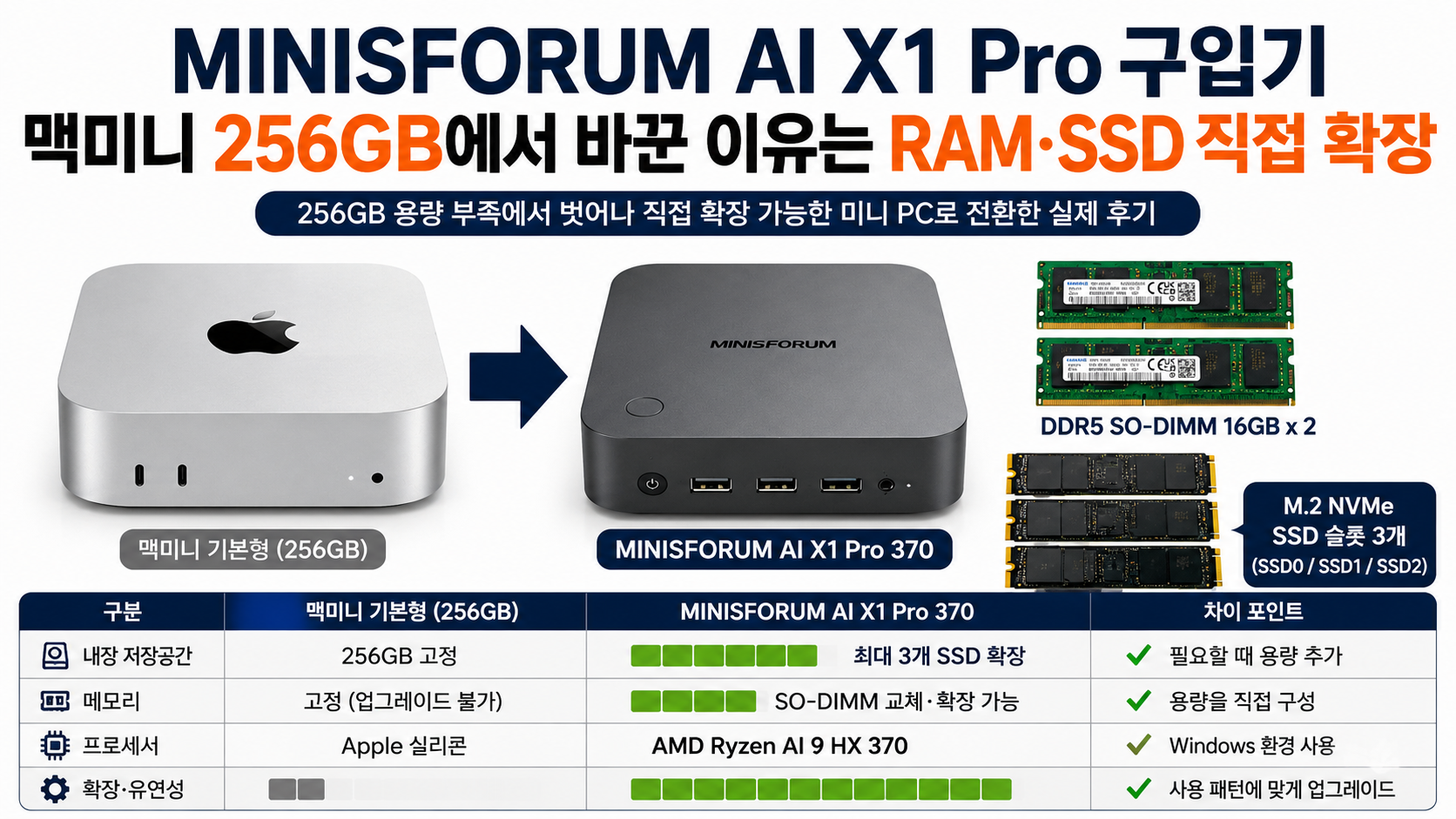
The biggest reason I switched from the base-model Mac Mini to the MINISFORUM AI X1 Pro-370 wasn't simply to get a faster CPU. I didn't want to experience the storage limitations of 256GB again, and this time I wanted a mini PC that would let me add RAM and SSD storage myself whenever necessary.
In the end, my criteria were fairly simple. Rather than buying a computer with a large amount of storage from the start, I wanted one that would let me install the components I needed and upgrade them again later. That approach suited the way I use computers much better.
Storage Was the First Limitation I Noticed with My 256GB Mac Mini
256GB might not seem particularly small if you mainly work with documents or browse the web. The problem starts when you use a computer for a long time and gradually accumulate more applications and work files.
The operating system and essential applications already take up space. Add photos, videos, downloaded files, and various application data, and you can't use the entire 256GB as working storage. Once you start handling large files, you may find yourself constantly checking the remaining capacity, deleting files, or moving them to another storage device.
That was exactly what frustrated me. I didn't dislike the Mac Mini's compact size or overall user experience. The way its storage worked simply didn't match my usage patterns.
I could have continued using an external SSD. However, I didn't want to keep solving the same problem by attaching additional external drives until it was time to buy another computer. This time, I started looking for a system that would let me install an SSD inside the case and replace it again if necessary.
In other words, this wasn't so much about switching from macOS to Windows. After using 256GB of storage, I made internal expandability an important requirement for my next computer.
What Caught My Attention About the MINISFORUM AI X1 Pro Was Its Expandable Design
When choosing the AI X1 Pro-370, I wasn't focused solely on the AMD Ryzen AI 9 HX 370 processor. What ultimately influenced my purchase decision was the internal layout revealed when opening the case.
The attached photos show three separate SSD installation positions labeled SSD0, SSD1, and SSD2. The RAM isn't permanently soldered in place either; the system uses SO-DIMM memory modules.
For someone like me, who prefers choosing and installing RAM and SSDs separately rather than simply accepting a preconfigured system, that difference matters a lot.
For this build, I prepared 2 Samsung 16GB DDR5 SO-DIMM modules, as shown in the photos. With a configuration using two modules, I could choose the memory capacity I wanted from the beginning. I opened the case and installed them myself.
I took the same approach to SSD storage. Rather than deciding on all my storage capacity at the time of purchase, I wanted to install the SSDs I needed myself and use the remaining slots if I required more space later.
What I wanted wasn't simply a PC with a large storage capacity. It was a PC that would give me more options when I ran out of space.
Why I Chose to Install RAM and SSDs Myself Instead of Buying a Fully Configured System
Installing RAM and SSDs yourself requires a little extra effort. You have to open the case, check the memory and SSD specifications, and verify that the system recognizes the components correctly after installation.
Even so, I chose this approach because I didn't want the specifications I purchased on day one to determine what I could use throughout the computer's entire lifespan.
If storage becomes insufficient, I can add another SSD. If I need more memory, I can switch to a compatible RAM configuration. I can decide whether to keep using existing components, increase capacity, or separate my storage across multiple drives.
That difference may become even more noticeable 1~2 years after the initial purchase.
With my 256GB Mac Mini, I kept thinking about how to manage the space I had left. With the AI X1 Pro, the question has changed to which slot I should use for my next SSD.
For me, the second approach is far more convenient.
Opening the Case Revealed Space for 3 Separate SSDs
Removing the bottom panel of the AI X1 Pro reveals its internal layout. In the photos I took, the memory installation area, cooling fan, and SSD installation areas are separated, with the SSD positions marked SSD0, SSD1, and SSD2.
What I liked was that I didn't have to rely on a single large SSD for all my storage needs.
For example, I could consider using one SSD for the operating system and applications, another for active project files, and another for archived data. The exact arrangement would depend on the software I use and the size of my files, but simply having the option to choose between multiple slots was the change I wanted.
However, having multiple SSD slots doesn't mean filling all three is automatically the best choice. There's no reason to buy storage devices before they're needed.
I believe starting with only the capacity you need and adding more when space becomes limited is actually one of the best ways to take advantage of this product's expandability.
I Also Configured the RAM Myself Instead of Accepting a Prebuilt Specification
I followed the same principle when choosing memory.
I prepared and installed two Samsung DDR5 SO-DIMM 16GB modules, as shown in the photos. These are smaller memory modules used in laptops and mini PCs, with a different form factor from desktop DIMMs. That makes it important to check the specifications before purchasing.
When installing memory, you should completely disconnect the power, check the slot orientation and notch position, and make sure each module is properly seated. After installation, you also need to confirm that Windows correctly displays the installed memory capacity.
The advantage of an expandable system doesn't mean you can install just any RAM. You still need to verify supported specifications and component compatibility. Similarly, when buying an SSD, you shouldn't rely on the M.2 designation alone; you also need to match the physical dimensions and interface specifications.
Being expandable and accepting any component are two very different things.
This Doesn't Mean the AI X1 Pro Is Automatically Better Than the Mac Mini
My purchase decision wasn't about declaring one product universally superior to the other.
The Mac Mini has clear advantages for people who prefer macOS and Apple's ecosystem. If you already use an iPhone or iPad alongside your computer, or your essential software is designed for macOS, switching operating systems just because of storage limitations could actually create more inconvenience.
In my case, however, I was comfortable using Windows, and the freedom to configure my own storage and memory mattered more.
That's why I didn't base my comparison on CPU benchmark scores alone.
I asked myself which mattered more: the convenience of continuing to use my 256GB Mac Mini or the freedom to manage RAM and SSD storage myself with the AI X1 Pro.
My answer was expandability.
If I was going to buy another mini PC, I needed something that would remain compact while allowing me to keep upgrading its internal components, rather than purchasing the highest specifications available from the start.
What I Liked About Buying the AI X1 Pro—and What I Had to Accept
The most satisfying part is knowing that if I run out of storage in the future, I can reconsider my internal storage configuration without replacing the entire PC. Because I can also purchase and install RAM myself, the specifications I started with don't have to be the final specifications.
On the other hand, upgrading components yourself involves more things to check than buying a fully configured system.
You need to verify component specifications and avoid pulling too hard on connectors or cables when opening the bottom panel. When adding an SSD, you should also check heat management and whether the drive is securely mounted. After installation, you need to confirm that the BIOS or Windows recognizes the hardware correctly.
This doesn't mean a Windows mini PC is more convenient than a Mac Mini in every respect. If selecting and maintaining components yourself feels like a hassle, buying a preconfigured system with sufficient specifications from the beginning may be a better fit.
For people like me, who prefer buying a PC and upgrading its RAM and SSDs as needed rather than leaving it unchanged, an expandable internal design offers significant value.
Ultimately, the Frustration of 256GB Changed How I Chose My Next PC
The biggest inconvenience I experienced with the Mac Mini wasn't its small case. The problem was that the available space on its 256GB drive kept shrinking relative to my usage needs. That experience made me look at internal expandability before performance specifications when choosing my next computer.
That's why I chose the MINISFORUM AI X1 Pro-370.
The fact that it's a compact Windows PC powered by an AMD Ryzen AI 9 HX 370 processor certainly caught my interest. However, what mattered more in my actual purchase decision was the ability to configure RAM using SO-DIMM modules and the availability of multiple internal SSD installation positions.
This time, I installed the RAM myself and configured the SSD storage myself as well. Even if I run short of storage in the future, I can consider the available expansion options before worrying about how to free up space within 256GB.
If I had to sum up why I switched from the Mac Mini to the AI X1 Pro in one sentence, it would be this:
I didn't switch because I needed more performance. I switched because I wanted a computer that would let me solve storage capacity problems myself whenever they arose.