

How to Check Photo Backups Before Changing Phones: Steps to Check Restoration on Your New Phone
Turning on photo backup is not enough before replacing a smartphone. You need to check whether the latest photos have been backed up, whether they actually open on another device, and whether any specific folders were left out. Based on 2026-11-05 and the official guidance from Google Photos and Samsung Smart Switch, this segment summarizes what to check before and after changing phones…
This post contains Coupang Partners affiliate links. We may earn a commission from qualifying purchases.

Turning on photo backup is not enough before replacing a smartphone. You need to check whether the latest photos have been backed up, whether they actually open on another device, and whether any specific folders were left out. Based on 2026-11-05 and the official guidance from Google Photos and Samsung Smart Switch, this segment summarizes what to check before and after changing phones.
Completing a Photo Backup and Transferring Phone Data Are Different Things
Photo backup means storing photos and videos in a separate storage location. Data transfer means moving files from your old phone to your new phone.
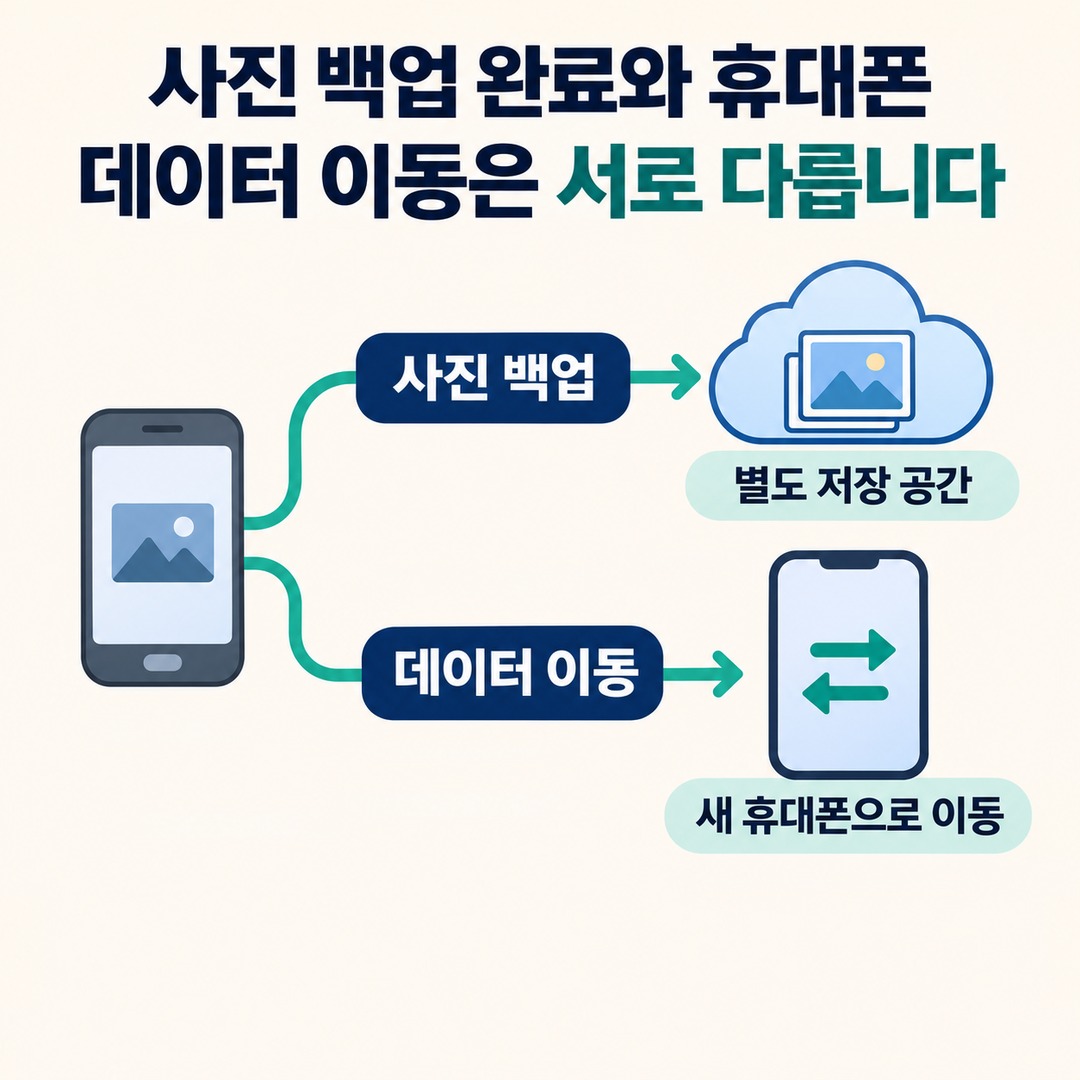
The results of these two tasks may differ.
For example, if your photos have been uploaded to Google Photos, you can sign in to the same Google account on your new phone and view them. However, you should not assume that all photos stored on your phone have automatically been uploaded to the cloud.
Samsung Electronics Service’s guidance in 2026-10-20 also distinguishes among several backup and sync methods, including Smart Switch, Samsung Cloud, Google Drive, and OneDrive.
So, before changing phones, it is a good idea to check these three things separately.
Are the photos actually saved in the cloud?
Can you view the photos again on your new phone?
Have you transferred separately any photos that are not included in the cloud backup?
How to Check Whether Google Photos Has Finished Backing Up
Google Photos lets you check separately whether backup is enabled and whether uploads have actually finished.
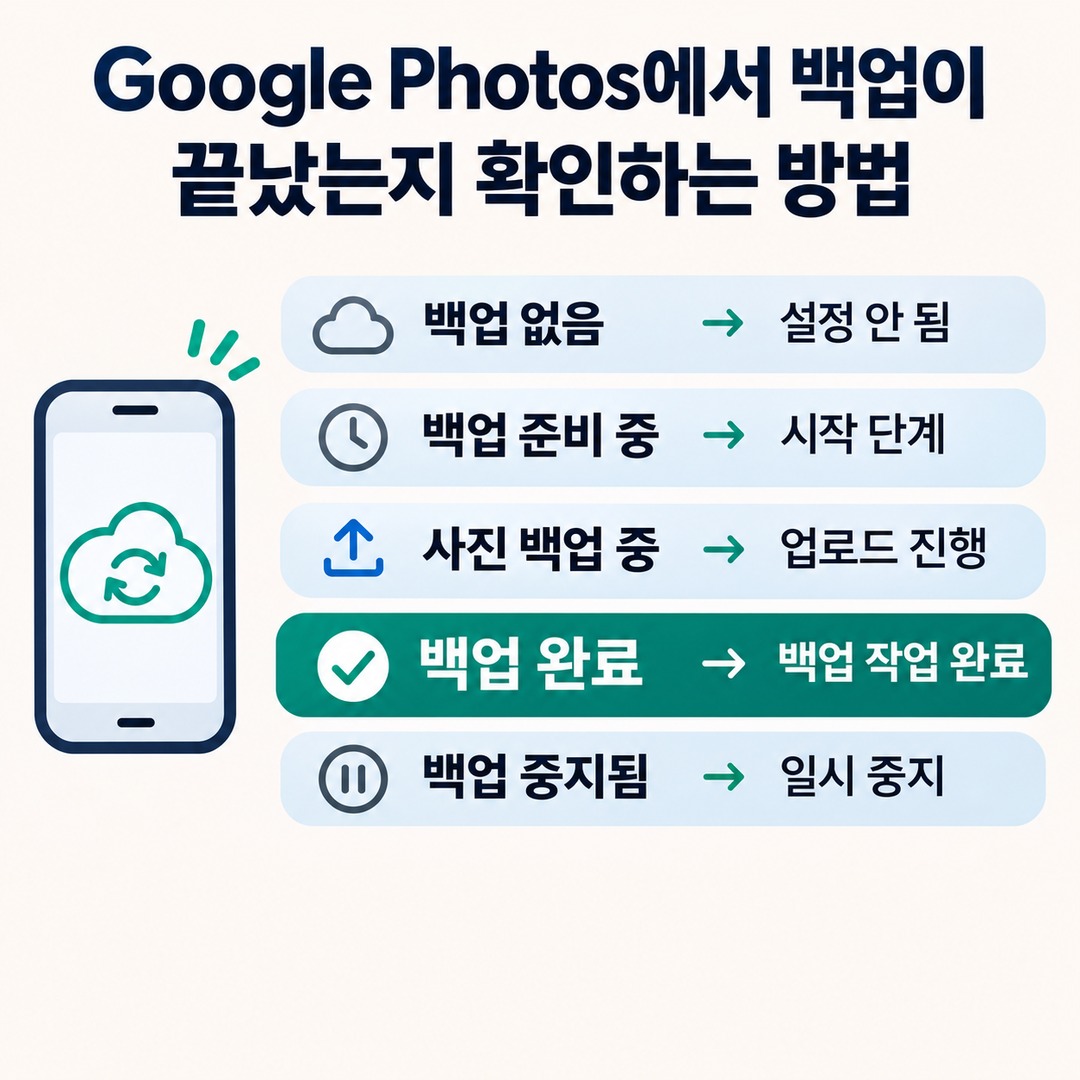
According to Google’s official help page, backup status appears as follows.
| Status shown | Meaning |
|---|---|
| No backup | Backup has not been set up |
| Preparing backup | Backup is starting |
| Backing up photos | Upload in progress |
| Backup complete | Backup finished |
| Backup paused | Backup is temporarily paused |
Follow these steps to check:
1. Open the Google Photos app on your old phone.
2. Tap your profile picture in the upper-right corner.
3. In Photos settings, select the Backup menu.
4. Check that the backup feature is turned on.
5. Make sure the backup account is the Google account you plan to use on your new phone.
6. Check the status at the top of the screen to confirm that backup is complete.
There is one more important point.
Don’t stop after checking only the overall backup completion status.

Google also shows whether each individual photo and video has been backed up. Open the photo or check the backup indicator on its thumbnail to make sure important files have actually been uploaded.
Check Other Folders Besides Camera Photos
A smartphone’s photo app contains many kinds of images, not just photos taken with the camera.
Photos saved from KakaoTalk
Downloaded images
Screenshots
Images saved from editing apps
Photos created by other apps
In Google Photos, you can check backup settings for individual device folders on Android devices.
Follow this path:
Google Photos → Profile → Photos settings → Backup → Back up device folders
Check here that the folders you need are enabled.
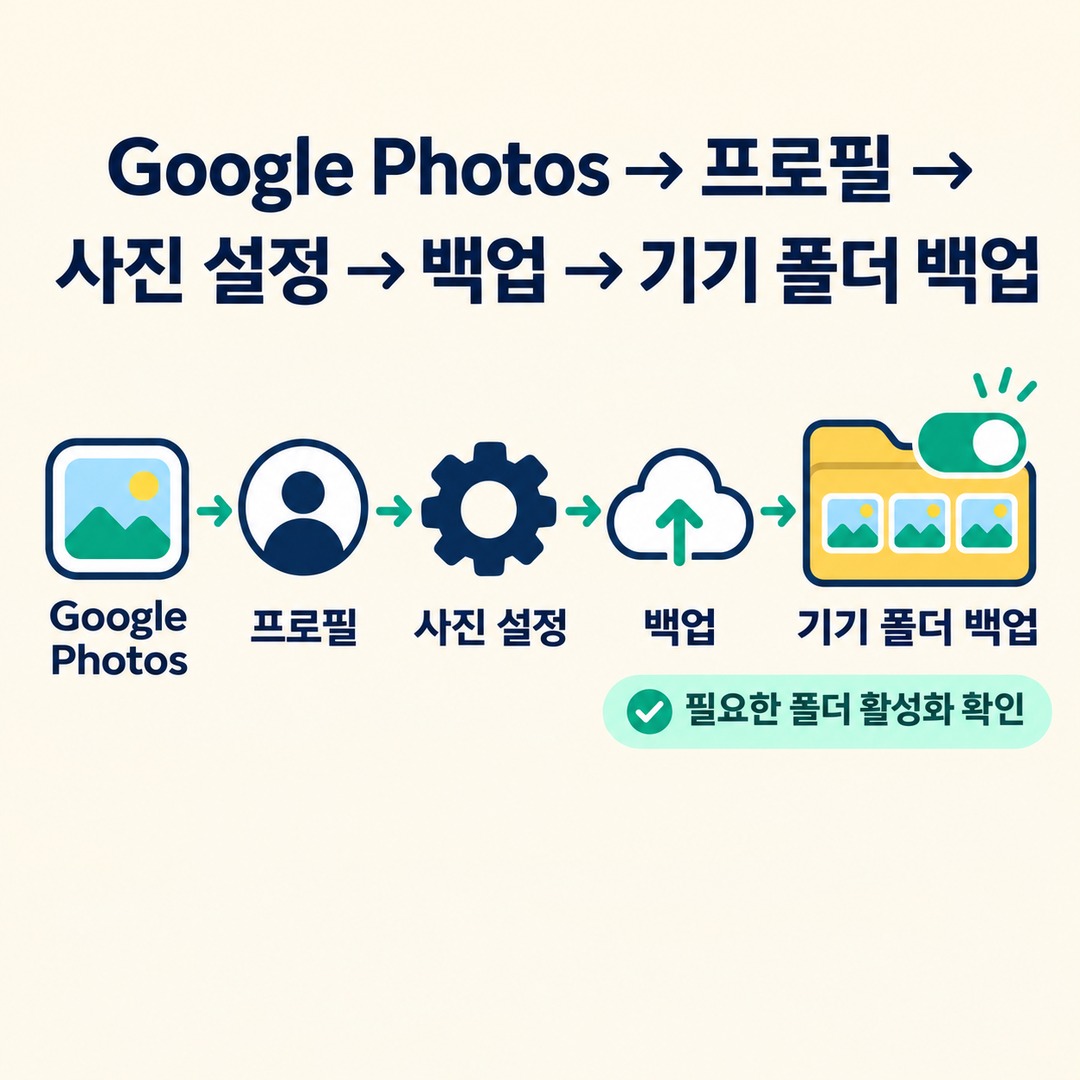
If you overlook this setting, images saved by other apps may be left out even if your camera photos have been backed up.
Google’s official guidance also recommends checking device folders when photos from other apps or devices are missing.

Galaxy Users Should Also Check the Smart Switch Backup Scope
If you’re moving from one Galaxy phone to another, you can use Smart Switch.
Smart Switch supports not only transferring data between phones, but also backing up and restoring data using a PC.
In guidance published by Samsung Electronics Service in 2026-06-21, the following are listed as data that can be backed up.
Photos and videos
Music and documents
Contacts
Calendar
Messages
Samsung Notes
Some apps and settings
However, internal data from every app does not necessarily transfer in the same way.
Transfers of apps installed from other sources may be limited by their developers’ policies.
For photos, the following steps are recommended.
1. Install Smart Switch on your PC.
2. Connect your old Galaxy phone using a USB cable.
3. Select the Backup menu.
4. Select the items you need, such as photos and videos.
5. Start the backup.
6. Check which items have finished backing up.
Samsung Electronics Service also provides the location where PC backup files are saved.
Windows: This PC → Documents → Samsung → SmartSwitch → backup
Mac: User folder → Samsung → SmartSwitch
After the backup is complete, it is also a good idea to check that the folder containing the saved files actually exists.
Is It Enough to See the Photos on Your New Phone?
Seeing images in the photo app on your new phone does not necessarily mean that all the original files have been restored correctly.
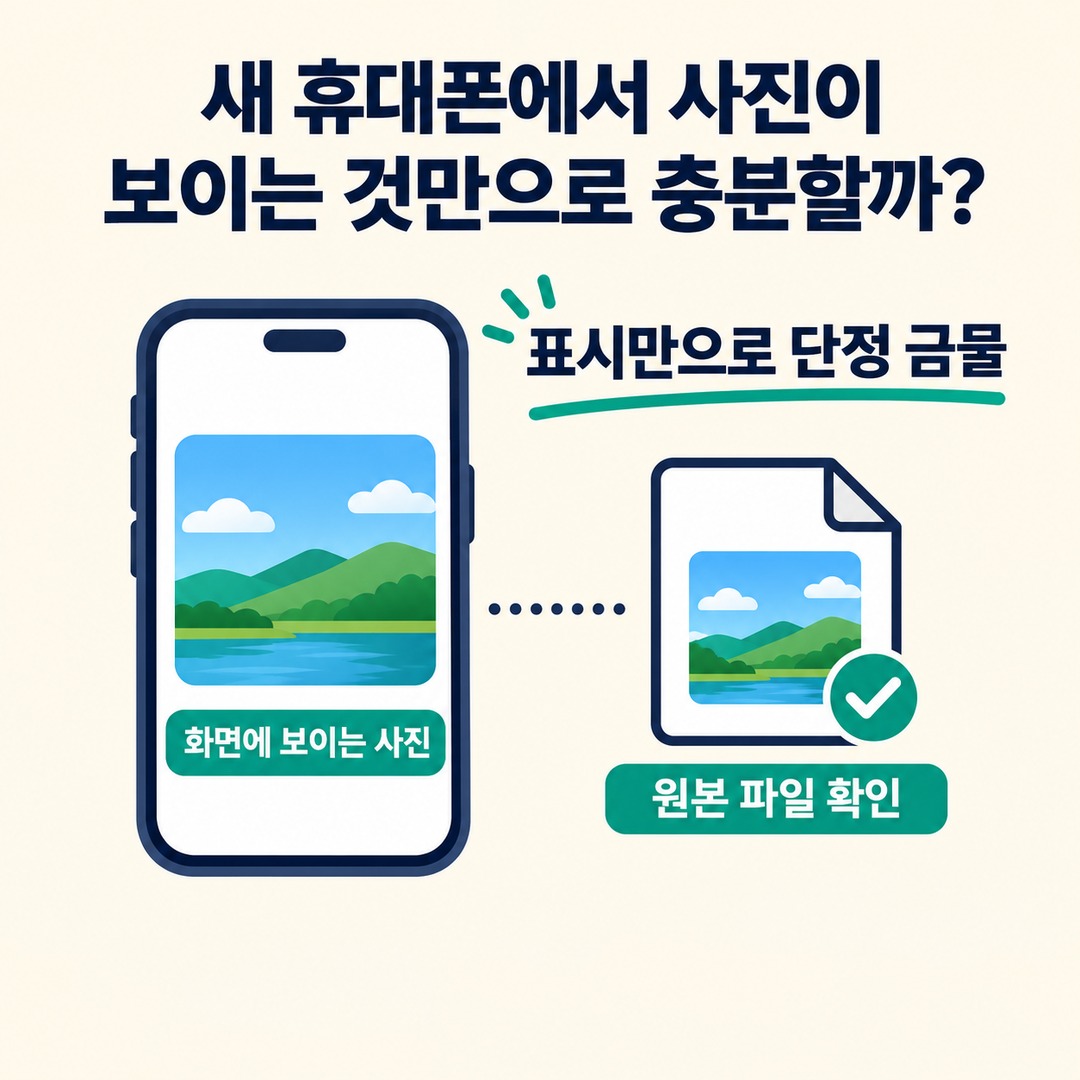
This is especially important when you use a cloud service: distinguish the originals actually stored from the status of photos displayed on the device.
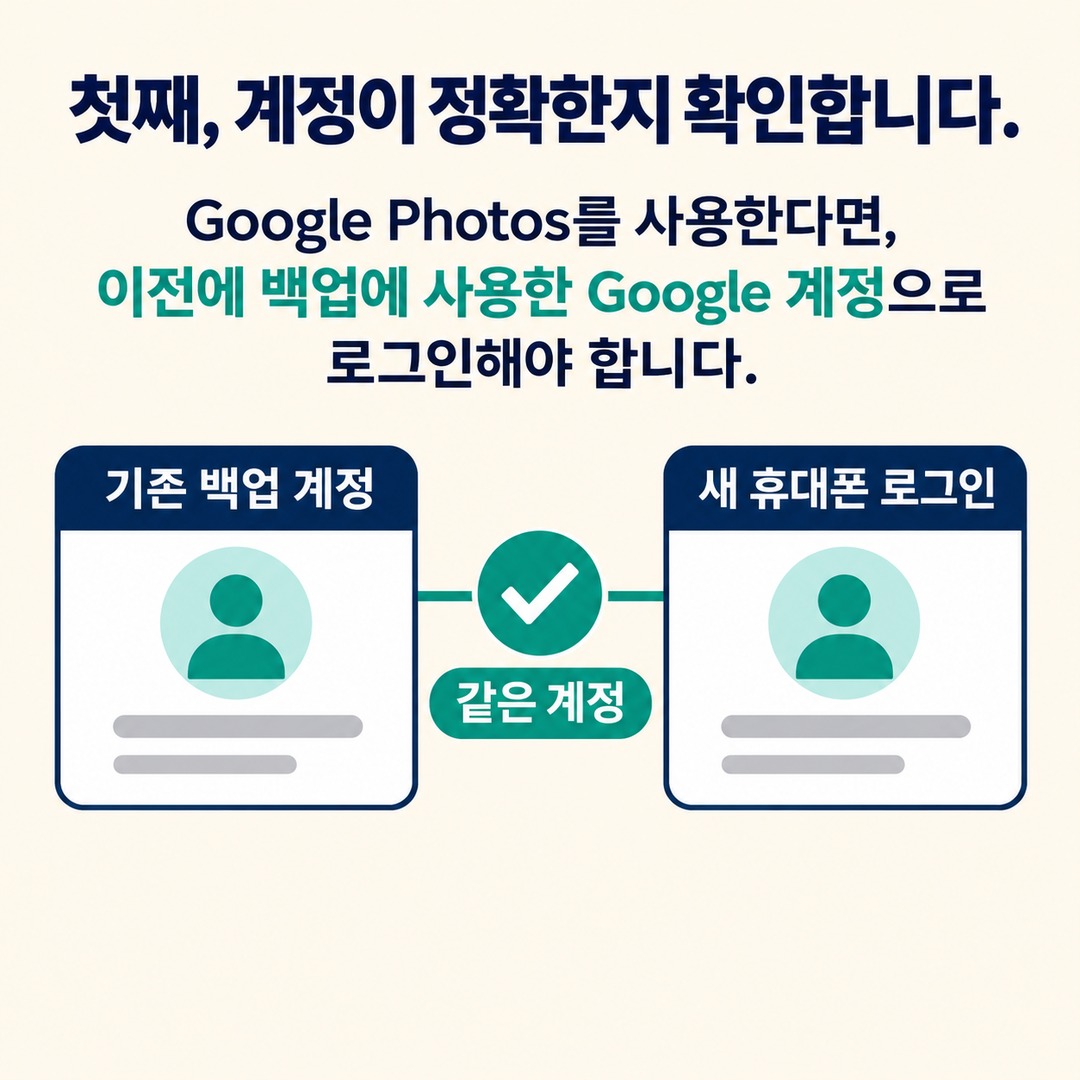
After changing phones, check the following.
First, check that you’re using the right account.
If you use Google Photos, sign in with the Google account you used for the original backup.
Second, open both older and recent photos.
Checking only recent photos makes it hard to tell whether older images are missing.
Third, play your videos, too.
Check whether you can only see a video thumbnail or whether the video actually plays.
Fourth, check the original files for important photos.
For photos where the original resolution matters, download and open the actual file or save a separate copy on a PC to check it.
Fifth, check separately stored folders, too.
Hidden albums, Secure Folder, and Downloads may need to be checked separately, depending on the service and backup method you use.
What Should You Do If the Photo Backup Isn’t Complete?
If backup has paused or some photos are missing, don’t reset your old phone. Start by checking the following.
| What to check | What to look for |
|---|---|
| Storage space | Whether cloud storage is full |
| Account | Whether the backup and sign-in accounts match |
| Network | Wi-Fi and mobile data settings |
| Folder settings | Device folders selected for backup |
| Individual files | Whether each photo has finished backing up |
In particular, new photos may not upload if there isn’t enough backup storage.
With Google Photos, check the account, storage space, and device folder settings together.
You can also consider copying photos that haven’t finished backing up to a PC or external storage device.
Final Checklist Before and After Changing Phones
Before returning or resetting your old phone, check the following.
[ ] Confirm that Google Photos or your cloud backup service has finished backing up
[ ] Check the backup account
[ ] Check recently taken photos
[ ] Check older photos
[ ] Make sure videos play
[ ] Check photos saved from KakaoTalk
[ ] Check the Screenshots and Downloads folders
[ ] Check hidden albums and Secure Folder
[ ] Open photos on your new phone to confirm they’re accessible
[ ] Check whether important photos are stored separately
The most important rule is not to reset or return your old phone until you’ve confirmed that your photos and videos are actually accessible on your new phone.
Photo backup is not finished the moment you turn on the setting. To change phones safely, check that the original files on your old device, the files stored in the cloud, and the files accessible on your new device all match up.
This post contains Coupang Partners affiliate links. We may earn a commission from qualifying purchases.